Table of Contents
- Why Cybersecurity Best Practices Matter for Beginners
- 1. Create Strong and Unique Passwords
- 2. Enable Multi-Factor Authentication Explained
- 3. Keep Your Software and Operating System Updated
- 4. Recognise Common Cyber Threats and Phishing Scams
- 5. Choose Antivirus Software Recommendations for Protection
- 6. Secure Your Network and Wi-Fi Connection
- 7. Back Up Your Data Regularly
7 Cybersecurity Best Practices for Beginners
Last Updated: July 17, 2026
Why Cybersecurity Best Practices Matter for Beginners
Cyber threats evolve constantly. According to UK National Crime Agency Cyber Crime Survey, cybercrime costs UK businesses billions annually, with small organisations particularly vulnerable. Most breaches are preventable through straightforward, practical measures.
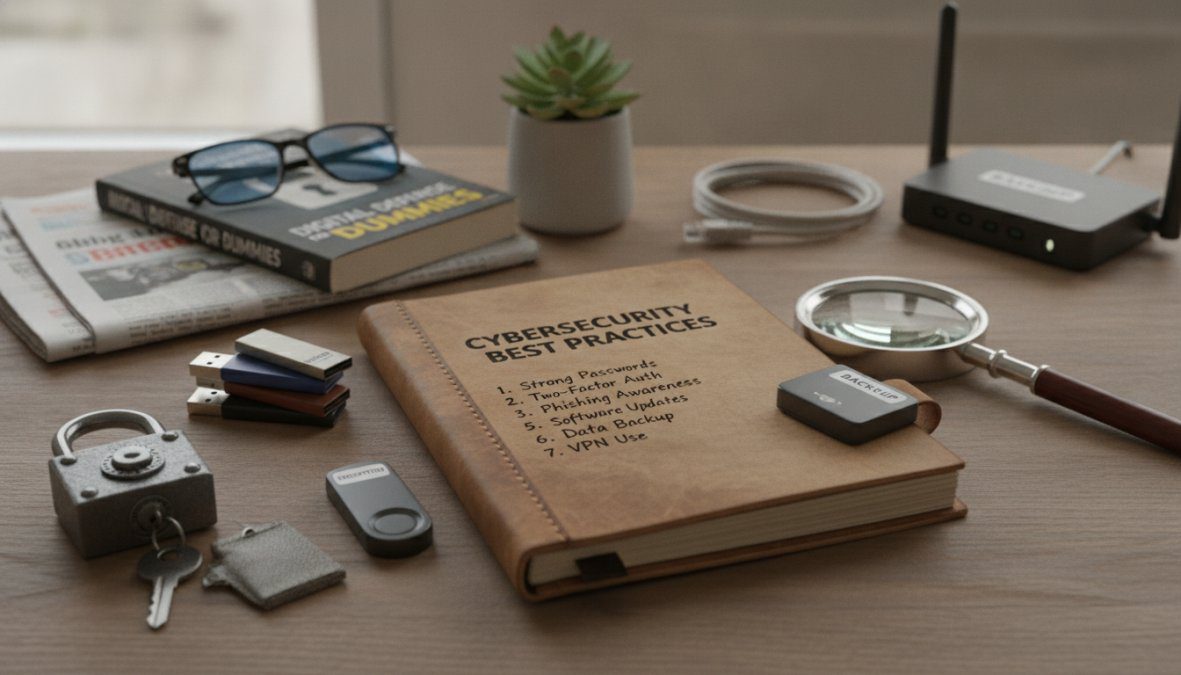
This guide covers seven foundational practices that form the backbone of cybersecurity hygiene. Each addresses a specific vulnerability attackers exploit regularly. By the end, you’ll understand how to implement these strategies immediately, whether protecting personal accounts or your organisation’s systems.
The biggest security mistakes aren’t technical failures. They’re human ones. Weak passwords, ignoring updates, and falling for phishing scams account for the majority of successful attacks.
1. Create Strong and Unique Passwords
Your password is often the only barrier between an attacker and your accounts. A strong password makes brute-force attacks impractical.
A strong password contains at least 12-16 characters mixing uppercase letters, lowercase letters, numbers, and special symbols. Length matters more than complexity: a 16-character passphrase is stronger than an 8-character one with special characters. Avoid dictionary words, personal information, or sequential patterns.
The critical part: each account needs a unique password. Reusing passwords means one breach compromises everything.
How to Build a Strong Password
Creating strong passwords manually is difficult. Use a passphrase method: string together 4-5 random words with numbers or symbols between them. Example: "Coffee-Mountain-7-Bicycle-Sunset" is stronger and easier to remember than "Kx9@mL2p".
For accounts you access frequently, a memorable passphrase works well. For everything else, use a password manager to generate and store complex passwords.
Using a Password Manager
A password manager stores encrypted passwords behind a single master password. Services like NordPass password manager offer zero-knowledge encryption, meaning even the company cannot access your passwords. The manager auto-fills login forms, eliminating the need to type passwords.
Setup takes minutes: create your master password, then let the manager generate unique passwords for each account. Many managers also flag weak or reused passwords.
The combination of unique passwords plus a password manager eliminates the most exploited security weakness. This single practice stops the majority of account takeovers.
2. Enable Multi-Factor Authentication Explained
Multi-factor authentication (MFA) requires two or more verification methods before granting access. Even if someone obtains your password, they cannot access your account without the second factor.
MFA comes in several forms: time-based one-time passwords (TOTP) generate a new code every 30 seconds in an authenticator app, SMS text messages send codes to your phone, biometric authentication uses your fingerprint or face, and hardware keys are physical devices that authenticate you. TOTP and hardware keys are more secure than SMS, but SMS is better than no MFA.
Enable MFA on every account that offers it. Prioritise email (controls password resets for other services), banking, work accounts, and social media.
Setting Up MFA on Your Key Accounts
Start with your email account. Most email providers offer multiple MFA options. Choose TOTP (authenticator app) if available.
Next, secure your password manager. Then work through financial accounts, work systems, and social media. Each activation takes 2-3 minutes.
For TOTP, use Authy authenticator app, which syncs across devices and includes encrypted backups. Store your backup codes in a secure location.
SMS-based MFA is vulnerable to SIM swapping, where attackers convince your mobile provider to transfer your number to their device. If SMS is your only option, it’s still better than no MFA, but upgrade to an authenticator app as soon as the service offers it.
3. Keep Your Software and Operating System Updated
Software updates patch security vulnerabilities that attackers actively exploit. When you delay updates, you leave known weaknesses exposed.
Operating system updates address critical vulnerabilities in core software. Browser updates patch exploits that malicious websites use. Application updates fix weaknesses in individual programs.
Enable automatic updates wherever possible. Modern systems allow you to schedule updates for convenient times, so they don’t interrupt your work.
Unpatched systems are compromised within days of a vulnerability becoming public. Check your update status today. On Windows, open Settings > Update & Security. On macOS, go to System Preferences > Software Update. On mobile devices, navigate to Settings > About Phone (Android) or Settings > General > Software Update (iOS).
Set a calendar reminder for the first Tuesday of each month to manually check for updates on devices that don’t support automatic patching.
4. Recognise Common Cyber Threats and Phishing Scams
Phishing scams remain the most common attack vector. Attackers send emails impersonating legitimate organisations, requesting you click a link or download an attachment to steal credentials or install malware.
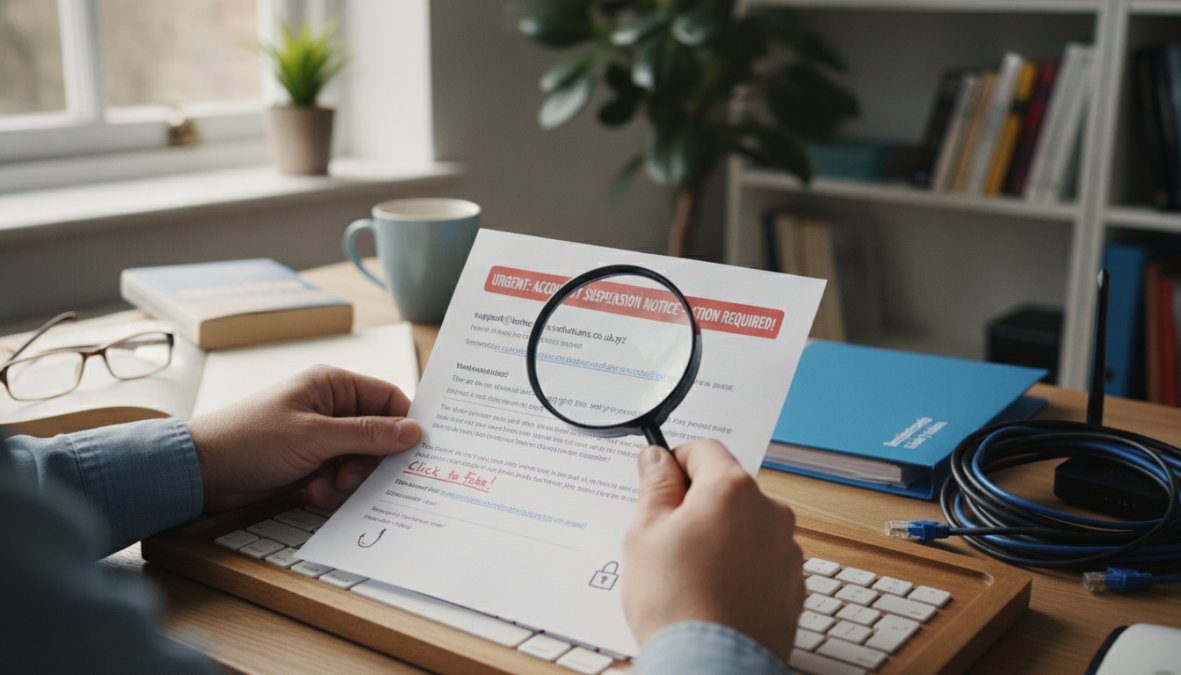
Social engineering exploits human psychology rather than technical vulnerabilities. An attacker might call pretending to be IT support, asking you to verify your password, or send an email claiming suspicious account activity. The pressure and urgency are deliberate.
Malware comes in many forms: viruses replicate and spread, trojans disguise themselves as legitimate software, ransomware encrypts your files and demands payment, and spyware monitors your activity. Most malware arrives through email attachments, malicious websites, or compromised downloads.
How to Spot a Phishing Email
Check the sender’s email address carefully. Attackers often use addresses that look similar to legitimate ones but contain subtle differences. "[email protected]" (with the number 1 instead of the letter l) is common.
Look for generic greetings, urgent language, and requests for sensitive information. Legitimate organisations never ask for passwords via email.
Hover over links before clicking; your email client will show the actual destination URL. If the link destination doesn’t match the displayed text, it’s suspicious.
When in doubt, navigate directly to the organisation’s website rather than clicking the email link. If your bank sent a message about unusual activity, open your banking app directly.
Phishing works because attackers study real organisations and mimic their communication style perfectly. Your scepticism is your best defence.
5. Choose Antivirus Software Recommendations for Protection
Antivirus software detects and removes malware before it causes damage. Modern antivirus uses signature-based detection (matching known malware patterns), behavioural detection (identifying suspicious actions), and heuristic analysis (finding previously unknown threats).
For beginners, free antivirus provides solid baseline protection. Bitdefender Antivirus Free offers real-time threat detection with minimal system impact.
Windows Defender (built into Windows 10 and 11) provides adequate protection for most users. Check Settings > Update & Security > Windows Security to verify it’s enabled.
Choose antivirus that updates automatically. Avoid installing multiple antivirus programs; they conflict with each other and slow your system. One solid antivirus is better than three mediocre ones.
Complement antivirus with a firewall. Windows Firewall is built-in and provides adequate protection for most beginners.
Free antivirus is sufficient for personal use, but organisations handling sensitive data should consider paid solutions with advanced features like sandboxing and threat intelligence.
6. Secure Your Network and Wi-Fi Connection
Your network is the gateway to all your devices. A weak Wi-Fi network allows attackers to intercept traffic, steal credentials, and spread malware across all connected devices.
Change your Wi-Fi router’s default password immediately after installation. Default credentials are publicly documented. Create a strong, unique password for admin access.
Enable WPA3 encryption (or WPA2 if WPA3 isn’t available). This encrypts all traffic between your devices and the router. Disable WEP and WPA encryption; they’re outdated and cracked easily.
Disable WPS (Wi-Fi Protected Setup), which contains vulnerabilities allowing attackers to crack your password.
Use a VPN (Virtual Private Network) when connecting to public Wi-Fi at cafés, airports, or hotels. Proton VPN Free offers unlimited bandwidth with no data caps.
For your home network, segment IoT devices (smart speakers, security cameras, smart home devices) onto a separate network if your router supports it.
Test your network security with GlassWire network monitoring. It visualises all devices connecting to your network and alerts you to suspicious connections.
7. Back Up Your Data Regularly
Ransomware encrypts your files and demands payment for decryption. Regular backups make ransomware attacks survivable; you simply restore from backup and ignore the ransom demand.
Backups must follow the 3-2-1 rule: maintain three copies of important data, on two different storage media, with one copy stored offsite. Your working files are copy one. An external hard drive is copy two. Cloud storage is copy three (offsite).
Automate your backup process. Cloud backup services like Backblaze Personal Backup run continuously in the background, backing up new and modified files automatically.
Test your backups regularly. A backup that cannot be restored is worthless. Monthly, restore a few files from backup to confirm the process works.
Keep at least one backup disconnected from your network. If ransomware spreads to your cloud storage, a disconnected external drive remains unaffected.
| Backup Method | Setup Time | Cost | Best For | Recovery Speed |
|---|---|---|---|---|
| Cloud backup (automated) | 10 minutes | Subscription | Most users | Minutes to hours |
| External hard drive | 15 minutes | One-time | Local backups | Minutes |
| NAS (network storage) | 30 minutes | One-time | Families/small teams | Minutes |
| USB flash drive | 5 minutes | One-time | Emergency backups | Minutes |
Implementing these seven cybersecurity best practices for beginners creates a resilient security foundation. You’ve addressed the primary attack vectors: weak credentials, unpatched systems, social engineering, malware, network vulnerabilities, and data loss. Each practice is straightforward to implement and requires no technical expertise.
Most organisations struggle with these fundamentals. If you’ve enabled MFA, use a password manager, keep systems updated, and maintain backups, you’re already ahead of most people. The key is starting now. Cyber threats don’t wait for convenience.
Frequently Asked Questions
What are the most important cybersecurity best practices for beginners?
The seven core practices are: creating strong passwords, enabling multi-factor authentication, updating your software, recognising phishing, using antivirus software, securing your network, and backing up data regularly. These form the foundation of your cyber hygiene and protect against the most common threats. Start with these and build more advanced practices as your confidence grows.
How does multi-factor authentication explained help protect my accounts?
Multi-factor authentication (MFA) requires two or more verification methods before granting access, typically something you know (password) and something you have (phone or authentication app). Even if someone obtains your password, they cannot access your account without the second factor. This significantly reduces the risk of unauthorised access from phishing or data breaches.
What are common cyber threats that beginners should know about?
Common cyber threats include phishing emails, malware, ransomware, weak passwords, and social engineering attacks. Phishing remains the most frequent attack vector, where criminals impersonate trusted organisations to steal credentials. Beginners should focus on recognising suspicious emails, avoiding unknown downloads, and using strong authentication methods to defend against these threats.
Do I really need antivirus software recommendations if I'm careful online?
Yes. Even cautious users can encounter malware through legitimate-looking websites, email attachments, or software downloads. Antivirus software provides real-time protection against threats you might miss. Free options like Bitdefender Antivirus Free offer essential malware detection and removal without the cost, making them a practical layer of defence for beginners.
How often should I back up my data?
Back up your data at least weekly, or more frequently if you create important files regularly. Automated cloud backup services are ideal because they work continuously without manual intervention. Regular backups protect you against ransomware, hardware failure, and accidental deletion. Consider both local backups (external drive) and cloud storage for comprehensive protection.